


Introduction
Tired of paying monthly fees for Google Drive, Dropbox, or iCloud? With a VPS, you can host your own private, secure cloud storage using Nextcloud. Nextcloud is a powerful open-source platform that allows you to store files, sync contacts, and share documents with complete control over your data.
In this guide, we will deploy Nextcloud using Docker Compose, ensuring a clean, isolated, and easily manageable installation.
Prerequisites: Before you start, you need a Linux VPS with SSH access, a user account with
sudoprivileges, and Docker with Docker Compose already installed. If you haven't set up Docker Compose yet, check out our Docker Compose setup guide.
Step 1: Prerequisites
Before starting, ensure your VPS has Docker and Docker Compose installed. If you haven't set them up yet, check out our previous guide on how to set up Docker Compose.
Verify your installation:

docker compose version
Step 2: Set up the Project
We need a dedicated directory to store the Nextcloud configuration and persistent data.
mkdir ~/nextcloud-server
cd ~/nextcloud-server
Now, create the docker-compose.yml file:
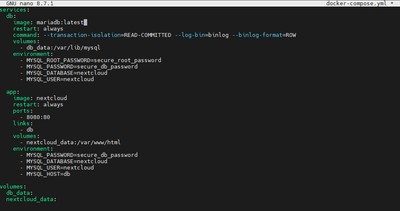
nano docker-compose.yml
Paste the following configuration. This stack includes the official Nextcloud image along with a MariaDB database for optimal performance.
services:
  db:
    image: mariadb:latest
    restart: always
    command: --transaction-isolation=READ-COMMITTED --log-bin=binlog --binlog-format=ROW
    volumes:
      - db_data:/var/lib/mysql
    environment:
      - MYSQL_ROOT_PASSWORD=secure_root_password
      - MYSQL_PASSWORD=secure_db_password
      - MYSQL_DATABASE=nextcloud
      - MYSQL_USER=nextcloud

  app:
    image: nextcloud
    restart: always
    ports:
      - 8080:80
    links:
      - db
    volumes:
      - nextcloud_data:/var/www/html
    environment:
      - MYSQL_PASSWORD=secure_db_password
      - MYSQL_DATABASE=nextcloud
      - MYSQL_USER=nextcloud
      - MYSQL_HOST=db

volumes:
  db_data:
  nextcloud_data:
Note: Make sure to change secure_root_password and secure_db_password to strong, unique passwords before saving.
Save and exit (CTRL+X, then Y, then Enter).
Step 3: Deploy Nextcloud
With our configuration file ready, it's time to spin up the containers. Run the following command in detached mode:
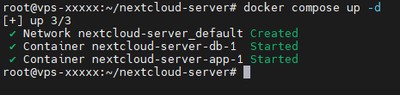
docker compose up -d
Docker will download the necessary images and start the services. This might take a minute or two depending on your VPS internet speed.
Once the containers are running, open your web browser and navigate to your VPS's IP address on port 8080:
http://your_server_ip:8080
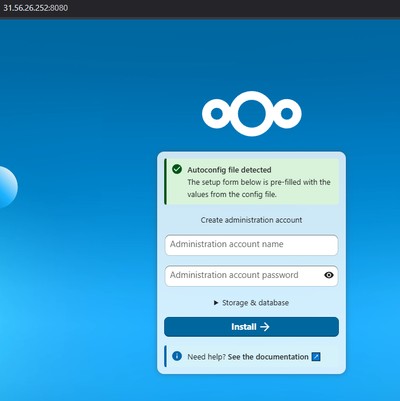
You will be greeted by the Nextcloud setup wizard. Create your admin account, and Nextcloud will automatically connect to the MariaDB database we configured in the docker-compose.yml file.
Conclusion
Congratulations! You now have your own self-hosted Nextcloud instance running securely inside Docker containers on your VPS. Your files are stored privately on hardware you control, with no subscription fees or third-party access to your data.
As a next step, we strongly recommend placing Nextcloud behind a custom domain with free HTTPS using Nginx Proxy Manager, so your cloud is accessible from anywhere via a clean, encrypted URL.
If you need a reliable server to host your self-managed cloud, check out our Premium VPS plans or Budget VPS options, which both come with fast NVMe SSD storage and high-bandwidth connectivity.