
Setting up a modern Minecraft server requires the modern Java 21 environment. This guide covers Minecraft 1.20.5 and newer. If you are looking for other versions, check our Minecraft Java Server Compatibility Guide.
Supported Versions
This Java 21 guide is fully compatible with:
- 1.21 Era: 1.21.11, 1.21.10, 1.21.9, 1.21.8, 1.21.7, 1.21.6, 1.21.5, 1.21.4, 1.21.3, 1.21.2, 1.21.1, 1.21
- Early Java 21: 1.20.6, 1.20.5
For a complete list of direct download URLs for every version, visit our Minecraft Vanilla Server Download Links Archive.
At VoxiHost, we recommend using at least 6GB of RAM for 1.21+ versions to ensure smooth performance even with high render distances.
Security First: Running a Minecraft server (or any public-facing application) as the
rootuser is a major security risk. If the server application is compromised, an attacker would have full access to your entire VPS. Always use a dedicated, restricted user.
Prerequisites
- A VPS running Ubuntu or Debian (Available on Premium VPS).
- Root or sudo access via SSH (for installing Java).
- A restricted non-root user to run the server software safely.
Step 1: Install Java 21
Before installing anything, ensure your system is up-to-date by following our System Update Guide. Once ready, install the headless JRE:

sudo apt update
sudo apt install openjdk-21-jre-headless -y
Step 2: Create a Dedicated User
For security, never run your server as root. If you are new to Linux permissions, check our guide on How to Create and Manage Users on Ubuntu/Debian.
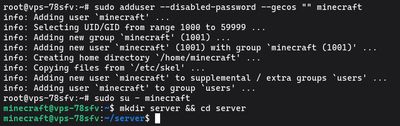
sudo adduser --disabled-password --gecos "" minecraft
sudo su - minecraft
mkdir server && cd server
Step 3: Download the Server JAR
Looking for a different modern version? You can find direct Mojang download links for all releases in our Minecraft Server Download Archive.

Fetch the official Mojang server.jar for version 1.21.1:
wget https://piston-data.mojang.com/v1/objects/59353fb40c36d304f2035d51e7d6e6baa98dc05c/server.jar
Step 4: Accept the EULA

Run the server once to generate the required configuration files:
java -jar server.jar nogui
sed -i 's/eula=false/eula=true/' eula.txt
Step 5: Create Launch Script
Pro Tip: Using the Nano Editor
Nano is a beginner-friendly text editor for the terminal. If thenanocommand is not found, install it usingsudo apt install nano -y.
- To Save: Press
CTRL + O, then hitENTER.- To Exit: Press
CTRL + X.
Create a start.sh file to manage your RAM allocation:

nano start.sh
Paste the following (Aikar's Flags optimized for G1GC):
#!/bin/bash
java -Xmx6G -Xms6G -XX:+UseG1GC -XX:+ParallelRefProcEnabled -XX:MaxGCPauseMillis=200 -XX:+UnlockExperimentalVMOptions -XX:+DisableExplicitGC -XX:+AlwaysPreTouch -XX:G1NewSizePercent=30 -XX:G1MaxNewSizePercent=40 -XX:G1HeapRegionSize=8M -XX:G1ReservePercent=20 -XX:G1HeapWastePercent=5 -XX:G1MixedGCCountTarget=4 -XX:InitiatingHeapOccupancyPercent=15 -XX:G1MixedGCLiveThresholdPercent=90 -XX:G1RSetUpdatingPauseTimePercent=5 -XX:SurvivorRatio=32 -XX:+PerfDisableSharedMem -XX:MaxTenuringThreshold=1 -Dusing.aikars.flags=https://mcflags.emc.gs -Daikar.for.v1.20=true -jar server.jar nogui
Make it executable:

chmod +x start.sh
Step 6: First Launch & Administrator Setup
Before setting up the automatic background service, you should run the server manually at least once to grant yourself administrator (OP) rights.
1. Start the server manually

Run the launch script you just created:
./start.sh
2. Grant Administrator (OP) rights

Once the server has finished loading (you see the "Done!" message), type your command directly into the console:
op your_minecraft_username
3. Stop the server
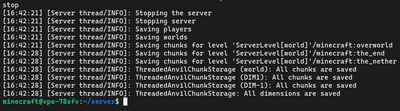
To save the world data and prepare for background hosting, type:
stop
This will return you to the normal Linux command line.
Step 7: Configure Systemd Service
For a professional setup, we use systemd. This ensures your server starts automatically if the VPS reboots and handles crashes gracefully.
Exit the minecraft user back to your root/sudo account:
exit
Create the service file:

sudo nano /etc/systemd/system/minecraft.service
Paste the following configuration:
[Unit]
Description=VoxiHost Minecraft 1.21 Server
After=network.target

[Service]
User=minecraft
WorkingDirectory=/home/minecraft/server
ExecStart=/home/minecraft/server/start.sh
Restart=on-failure
RestartSec=10

[Install]
WantedBy=multi-user.target
Enable and start your server:

sudo systemctl daemon-reload
sudo systemctl enable minecraft
sudo systemctl start minecraft
Managing Your Server
- Check Status:
sudo systemctl status minecraft - View Logs:
sudo journalctl -u minecraft -f - Stop Server:
sudo systemctl stop minecraft
Next Steps: Security & Management
Now that your server is running, don't forget to:
- DDoS Protection: All VoxiHost servers include automatic VoxiShield protection. Your server is already being monitored to prevent downtime during attacks.
- Open the Firewall: Allow traffic on port
25565by running:sudo ufw allow 25565/tcp. For more details, see our UFW Setup Guide. - Transfer Files: Want to upload an existing world? Use SFTP as explained in our FileZilla Tutorial.
- Hardening & Monitoring: Protect your VPS further by securing SSH and setting up Fail2ban. You can also monitor your system resources using htop.
Now your Minecraft 1.21.1 server is live! If you need more power for your community, check out our Premium VPS plans optimized for game hosting.