

If you've spun up a fresh VPS and aren't sure what to do first, update it. Sounds obvious, but a surprising number of servers sitting on the public internet are running packages that haven't been touched since the OS was installed. That's a problem.
Ubuntu and Debian ship solid defaults, but "solid" doesn't mean "secure forever". Packages get CVEs every week. The kernel gets patched. OpenSSH, OpenSSL, curl, all of them have had serious vulnerabilities over the years that were already fixed in an update most people hadn't bothered to apply. So let's fix that.
Before we start: if you are deploying a fresh server with a premium provider like VoxiHost, the system automatically runs a full package update immediately after deployment on first boot. But as your server runs over time, you will still need to know how to maintain it yourself.
The basics: apt update and apt upgrade
Before anything else, refresh your local package index. This doesn't install anything, it just checks what updates are actually out there:
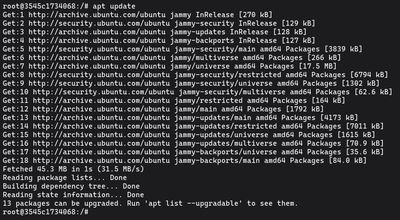
sudo apt update
Then install them:
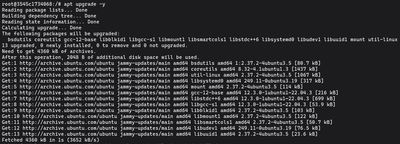
sudo apt upgrade -y
That's it for routine maintenance. Run these two, you're done. The -y flag skips the confirmation prompt, which is handy when you're running this in a script or just don't want to babysit the terminal.
One thing worth knowing: apt upgrade won't remove packages or pull in new dependencies. It only updates what's already installed. That's intentional. It makes it safe to run on a live server without worrying about something breaking because a package got swapped out.
Handling "kept back" packages (full-upgrade)
Sometimes after running apt upgrade you'll see a line saying a few packages were kept back. That usually means those packages have updated dependencies that aren't installed yet, and apt upgrade is playing it safe.
To deal with those, switch to full-upgrade:
sudo apt full-upgrade -y
This can pull in new dependencies or remove conflicting packages. It's not dangerous, but it does more than a regular upgrade, so it's worth checking what it plans to do before confirming on a critical machine.
Cleaning up old packages (autoremove)
Upgrades tend to leave orphaned packages behind: old libraries that were dependencies of something that got updated. Clean those up with:

sudo apt autoremove -y
Worth running after any major upgrade. You're not losing anything important, just clearing dead weight.
Do you need a reboot? (reboot-required)
Kernel updates don't take effect until you restart the machine. Ubuntu and Debian leave a breadcrumb when a reboot is pending:

cat /var/run/reboot-required
If that file exists, you need to reboot. If you want to know specifically which packages are causing it:
cat /var/run/reboot-required.pkgs
On production servers, pick your window. Rebooting mid-afternoon on a busy game server is going to upset people. If you're on a VPS with a management panel, most providers let you schedule restarts or at least see current traffic before pulling the trigger.
Automating patches with unattended-upgrades
For servers you don't log into every week, automatic security updates are a reasonable safety net. The unattended-upgrades package handles this:
sudo apt install unattended-upgrades -y
sudo dpkg-reconfigure --priority=low unattended-upgrades
By default it only applies security patches (not regular package upgrades) which is exactly what you want. You're not automatically getting new feature versions of things, just staying patched against known vulnerabilities.
The quick update one-liner
When you SSH in to do something quick and want to make sure the system is current before you leave:
sudo apt update && sudo apt upgrade -y && sudo apt autoremove -y
Chain it, let it run, check if a reboot is needed, done.
Upgrading to a new release (do-release-upgrade)
If you want to jump from Ubuntu 22.04 to 24.04:
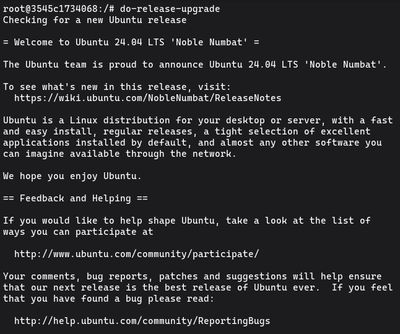
sudo do-release-upgrade
Take a snapshot first. This is not a small operation, as it touches essentially everything on the system. If you're on a production server, seriously consider doing this on a clone first and testing your applications on the new version before committing.
What to actually watch out for
Kernel and libc updates are the ones that always need a reboot. Config file changes are the ones that can trip you up. During upgrades, if a package ships a new default config for something you've customized, apt will ask whether to keep your version or install the new one. Read those prompts carefully.
Regularly updated servers also fail in more predictable ways. If something breaks after an update, you know exactly when it happened and what packages changed. On a server that hasn't been updated in 8 months, debugging a failure is a much messier experience.
For a completely hardened server, package updates are just step one. Consider setting up UFW Firewall and fail2ban to drop malicious background noise actively.
If you want a clean VPS to practice this on, our Budget VPS plans are cheap enough that you can snapshot, experiment, and blow it up without any stress.