

Fedora moves fast. It's the distro that ships what RHEL will be running in two years, which means you get bleeding-edge kernels, newer toolchains, and packages that are actually current. The tradeoff is you need to stay on top of updates more actively than you would on a long-term-support distro.
Starting with Fedora 41, the default package manager switched to dnf5, a full rewrite of dnf that's faster, uses less memory, and has a cleaner API. If you're on Fedora 43, you're using dnf5. The command is dnf5, though dnf still works as an alias pointing to the same binary.
Before we start: if you are deploying a fresh server with a premium provider like VoxiHost, the system automatically runs a full package update immediately after deployment on first boot. But as your server runs over time, you will still need to know how to maintain it yourself.
The basics: dnf5 upgrade
To update a Fedora 43 server, you run:
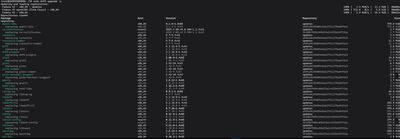
sudo dnf5 upgrade -y
This checks for available updates, downloads them, and installs them in one pass. The -y flag skips the confirmation. That's it for routine updates.
If you want to see what would change before committing:
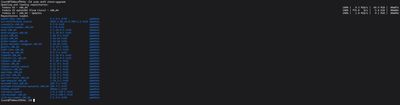
sudo dnf5 check-upgrade
Short list, nothing gets touched. Good habit before running updates on a machine that's actually serving traffic.
One difference from older dnf: dnf5 separates the concepts of update and upgrade more clearly. In practice, dnf5 upgrade is the command you want, it handles both package updates and dependency resolution. dnf5 update is an alias and works the same way.
Cleaning up (dnf5 autoremove)
After upgrades, orphaned packages pile up. Old kernels, old libraries that newer versions replaced. Clean those up:
sudo dnf5 autoremove -y
Fedora by default also keeps the last two kernel versions installed, which is sensible, it gives you a fallback if something goes sideways. If you want to prune old kernels specifically:
sudo dnf5 repoquery --installonly --latest-limit=-2 -q
That shows you what would be removed. Add --remove to actually do it. Be careful on systems where you don't have out-of-band console access.
Do you need a reboot? (needs-restarting)
Fedora doesn't write a reboot-required file like Ubuntu does. Instead, use:

sudo needs-restarting -r
Exit code 1 means a reboot is needed (usually a kernel update). Exit code 0 means you're fine. If the tool isn't installed:
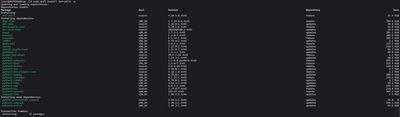
sudo dnf5 install dnf-utils -y
On a server, you can also check which services are running against outdated libraries and restart only those, avoiding a full system reboot:
sudo needs-restarting -s
This is particularly useful on Fedora, where kernel updates are frequent. Restarting a handful of services is much less disruptive than taking the machine down.
Automating patches with dnf-automatic
For servers that sit in the background without regular manual attention:

sudo dnf5 install dnf-automatic -y
The config file controls what gets updated automatically:

sudo nano /etc/dnf/automatic.conf
If missing package nano install it first:
sudo dnf5 install nano -y
Key settings:
[commands]
# security = only security patches (recommended for servers)
upgrade_type = security

# Actually install the updates, not just download them
apply_updates = yes

# Emit output to the journal
emit_via = stdio
Enable the systemd timer to run it daily:
sudo systemctl enable --now dnf-automatic.timer
Verify it's scheduled:
sudo systemctl status dnf-automatic.timer
On Fedora, security patches come through regularly given how active the project is, so automatic security updates make a real difference.
The quick one-liner
SSH in, do your thing, leave it clean:
sudo dnf5 upgrade -y && sudo dnf5 autoremove -y
Then check needs-restarting -r. Two minutes of work, system stays current.
Upgrading to the next Fedora release
Fedora moves to a new release every six months, and each release is supported for about 13 months. When it's time to move from 43 to 44:
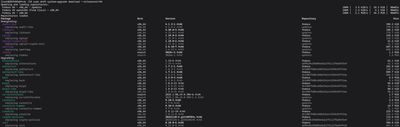
sudo dnf5 system-upgrade download --releasever=44
sudo dnf5 system-upgrade reboot
The upgrade happens on the next boot in a controlled environment. This is the supported path, don't try to manually swap repos and run dnf5 distro-sync, you'll end up in a broken state.
Before upgrading: snapshot the VM, read the Fedora 44 release notes for anything that might break your workload, and if possible test on a clone first.
The SELinux and config file traps
Two things to watch after updates on Fedora:
SELinux denials. If a service stops working after an update, check the audit log:
sudo ausearch -m avc -ts recent
If missing package ausearch install it first:
sudo dnf5 install ausearch -y
A policy update might have changed what your service is allowed to do, or an updated binary might need a new label. Most of the time this sorts itself out, but it's the first thing to check.
RPM config file conflicts. When a package ships a new default config, it creates a .rpmnew file instead of overwriting yours:
sudo find /etc -name "*.rpmnew" -o -name "*.rpmsave" 2>/dev/null
Check those after any significant update. Merge what matters, delete what doesn't.
Fedora is a solid server operating system if you're staying current. The six-month release cycle sounds fast, but the system-upgrade path is smooth and rarely causes surprises. If you want a clean VPS to test a Fedora upgrade without risking your production machine, our Budget VPS plans are a cheap way to run through the whole process.