
If you're running AlmaLinux, CentOS Stream, or Rocky Linux, you're on distros that take stability seriously. But stability doesn't mean you can leave the system untouched for months. Packages still get CVEs, the kernel still gets security patches, and OpenSSH vulnerabilities wait for no one.
Good news: all three distros share the exact same package manager, dnf. Same commands, same behavior, same output. So this guide applies to AlmaLinux 9, AlmaLinux 10, CentOS Stream 9, CentOS Stream 10, Rocky Linux 9, and Rocky Linux 10 without any changes.
Before we start: if you are deploying a fresh server with a premium provider like VoxiHost, the system automatically runs a full package update immediately after deployment on first boot. But as your server runs over time, you will still need to know how to maintain it yourself.
The basics: dnf update and dnf upgrade
Unlike apt, which splits "refresh index" and "install updates" into two separate commands, dnf update does both in one shot. It fetches the latest metadata and installs whatever's new:
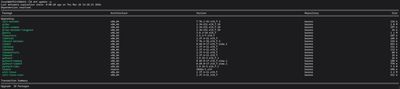
sudo dnf update -y
That's genuinely all you need for routine maintenance. The -y flag skips confirmation prompts, which is convenient when you're SSH'd in to do something else and don't want to babysit a package upgrade.
If you want to check what would be updated before actually running it:

sudo dnf check-update
This is the equivalent of apt update, it shows you the list of available updates without touching anything. Good habit before running updates on something you're not sure about.
One note on naming: dnf upgrade is an alias for dnf update. They're identical on these three distros. You'll see both in documentation; don't let that confuse you.
Cleaning up (dnf autoremove)
After updates, old packages tend to accumulate. Dependencies that were pulled in for something that's since been updated, libraries nothing uses anymore. Clean those up with:

sudo dnf autoremove -y
Same concept as apt autoremove. Not critical to run every time, but worth doing after a major update or once a month. It keeps the system clean and the disk usage predictable.
Do you need a reboot? (needs-restarting)
Kernel updates don't take effect until you reboot. Unlike Debian-based systems that leave a /var/run/reboot-required file, RHEL-family distros use a tool called needs-restarting:
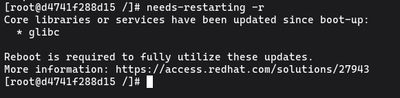
sudo needs-restarting -r
If the command exits with code 1 and tells you a reboot is required, you need one. If it exits cleanly with code 0, you're fine. This tool is part of the dnf-utils package, if it's not installed:

sudo dnf install dnf-utils -y
It can also check for services that need restarting without a full reboot. Worth knowing if you're trying to minimize downtime:
sudo needs-restarting -s
This lists services that have loaded outdated libraries. Restarting those individually is often enough to pick up security fixes without taking the whole system down.
Automating patches with dnf-automatic
For servers you don't log into daily, automatic security updates are a practical safety net. Install the package:

sudo dnf install dnf-automatic -y
Then edit the config to set the behavior you want:
sudo nano /etc/dnf/automatic.conf
If missing package nano install it first:

sudo dnf install nano -y
The key settings:
[commands]
# Options: default, security, security-severity:Critical, minimal, minimal-security
upgrade_type = security

# Actually apply the updates (not just download)
apply_updates = yes

# Reboot if required after updates (be careful in production)
reboot = never
Set upgrade_type = security to only auto-apply security patches, not general package updates. That's the sensible default for a production machine, you don't want feature releases going in automatically, just CVE fixes.
Enable and start the timer:
sudo systemctl enable --now dnf-automatic.timer
Check that it's active:
sudo systemctl status dnf-automatic.timer
The quick update one-liner
When you SSH in for something else and want to leave the server in a clean state:
sudo dnf update -y && sudo dnf autoremove -y
Run it, let it finish, check needs-restarting -r, done. Takes a minute, saves you from finding out your server was running a year-old kernel next time something breaks.
Upgrading to a new major release
Jumping from AlmaLinux 9 to 10, CentOS Stream 9 to 10, or Rocky Linux 9 to 10 is a bigger operation than a routine update. Each project has its own migration tool:
For AlmaLinux, the official path is through ELevate, a tool from the AlmaLinux project that handles the switch between major versions including dependency resolution and package replacement. Same tooling also handles Rocky Linux and CentOS Stream migrations.
Before attempting any major release upgrade:
- Take a full snapshot of the VM
- Read the release notes for the target version
- Test on a non-production clone first
Don't do a major upgrade via SSH on a machine with no out-of-band access. If something goes wrong mid-upgrade, you'll want a way in.
What to watch out for
The most common gotcha on RHEL-family systems is SELinux. If an update changes file permissions or binary paths, SELinux policies might block the service from starting correctly after the update. Check the audit log if something stops working after an update:
sudo ausearch -m avc -ts recent
If missing command ausearch install it first:
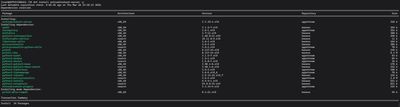
sudo dnf install setroubleshoot-server -y
Config file handling in dnf is somewhat more aggressive than apt. When a package ships a new default config, dnf might overwrite your customized version with a .rpmnew suffix on the original. Always check for those after a major update:
sudo find /etc -name "*.rpmnew" -o -name "*.rpmsave"
Look at what's changed, decide if you need to merge anything, then clean up.
If you want a clean RHEL-based VPS to practice this on without risking anything, our Budget VPS plans are cheap enough to spin up a test box, run the whole process, and discard it.