
The moment a server with a public IP goes live, automated scanners start probing port 22. It's not personal, it's just what happens on the internet. Most of them are looking for root logins with weak passwords or default credentials from cloud images that haven't been touched.
Locking down SSH on AlmaLinux, CentOS Stream, Rocky Linux, and Fedora takes the same 15 minutes as on any Linux server, with one extra step that RHEL-based systems require: telling SELinux about any port changes you make. Skip that and you'll be wondering why SSH stopped working.
Prerequisite: This guide disables root login. You must have a non-root user with
sudoprivileges ready before running any of these steps. If you haven't done that yet, follow our How to Create a Sudo User on AlmaLinux, CentOS, Rocky Linux & Fedora guide first, then come back here.
Set up SSH key authentication
Do keys before anything else. Password authentication is the main vector for SSH brute-force attacks, and switching to keys eliminates it entirely.
On your local machine, generate an ed25519 key pair:
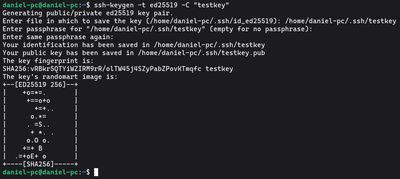
ssh-keygen -t ed25519 -C "your-server-label"
Set a passphrase when prompted. It encrypts the private key on disk, if someone gets your local machine, they still can't use the key without the passphrase.
Copy the public key to the server:
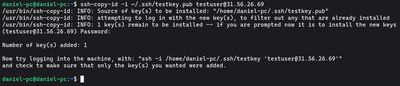
ssh-copy-id -i ~/.ssh/id_ed25519.pub user@your-server-ip
Open a new terminal window and verify you can connect with the key before changing anything else. If you're in without a password prompt, the key works. Keep your original session open, you'll need it as a fallback if something goes wrong in later steps.
Disable root login
Direct root login is an unnecessary risk. If your key gets compromised, an attacker immediately has unrestricted access. Use a non-root account with sudo instead.
Edit the SSH config:

sudo nano /etc/ssh/sshd_config
Find and set:
PermitRootLogin no
If this isn't set, on RHEL-based systems the default may vary by cloud image. Always set it explicitly.
Disable password authentication
With your key confirmed working, disable passwords:

sudo nano /etc/ssh/sshd_config
Set:
PasswordAuthentication no
PubkeyAuthentication yes
On these distros, the main config file is usually authoritative. But double-check for overrides:
grep -r "PasswordAuthentication" /etc/ssh/
If anything in /etc/ssh/sshd_config.d/ is setting it to yes, fix that file.
Tighten a few more settings
Small changes that reduce exposure:
# Disconnect after 3 failed auth attempts
MaxAuthTries 3

# Reduce the window for incomplete connections
LoginGraceTime 30

# Disable features you're not using
X11Forwarding no
AllowTcpForwarding no
If only specific users should have SSH access:
AllowUsers youruser
Any system user not listed won't be able to authenticate remotely, even with valid credentials. Useful for keeping application accounts locked down.
Change the default port
This is where RHEL-based systems differ from Debian-based ones. SELinux controls which ports services are allowed to listen on. If you change the SSH port without updating SELinux, the service will fail to restart.
First, check which ports SSH is currently allowed to use:
sudo semanage port -l | grep ssh
Add your new port to the allowed list:
sudo semanage port -a -t ssh_port_t -p tcp 2222
If semanage isn't available:
sudo dnf install policycoreutils-python-utils -y
Then edit sshd_config:
Port 2222
Now update firewalld to allow the new port and remove the old one:
sudo firewall-cmd --permanent --add-port=2222/tcp
sudo firewall-cmd --permanent --remove-service=ssh
sudo firewall-cmd --reload
Verify:
sudo firewall-cmd --list-all
You should see 2222/tcp in the ports list and ssh removed from services.
Restart sshd and verify
On RHEL-family systems the service is sshd, not ssh:
sudo systemctl restart sshd
In a new terminal window, connect on the new port:
ssh -p 2222 user@your-server-ip
If it works, you're done. If not, use your existing session to debug. Check for config syntax errors first:
sudo sshd -t
That command validates the config without actually restarting, it will tell you if there's a typo or invalid setting.
Verify the SELinux port assignment
After restarting, confirm SELinux accepted the port:
sudo semanage port -l | grep ssh
You should see your new port listed. If the restart succeeded, this should already be fine.
Check the auth logs
See what's hitting your server:
sudo journalctl -u sshd --since "1 hour ago" | grep -E "Failed|Invalid"
On a properly hardened server with password auth disabled and running on a non-standard port, this log should be essentially empty.
SELinux audit denials
If sshd fails to start or connect after the port change, check for SELinux denials:
sudo ausearch -m avc -ts recent | grep sshd
That'll tell you exactly what SELinux blocked, which makes fixing it much simpler than guessing.
If you want a clean RHEL-based VPS to practice this on without risk, our Budget VPS plans are cheap enough to spin up a test box, harden it, and start fresh if anything breaks.