

When you deploy a new server, whether it's a cloud VPS or a bare-metal machine, you are usually given the root credentials. The root account has absolute, unrestricted power. One mistyped command (rm -rf / comes to mind) and the server is gone without warnings or confirmations.
Because of this, logging in directly as root is a terrible habit. The standard security practice across all Linux distributions is to create a regular user account, grant it administrative privileges (via sudo), and use that account for your daily administration.
On RHEL-family distributions (AlmaLinux, CentOS Stream, Rocky Linux) and Fedora, the process requires only three commands.
Step 1: Add the new user
Connect to your server via SSH as the root user:
ssh root@your-server-ip
Unlike Ubuntu, which uses the interactive adduser script, RHEL-based distributions typically use the standard useradd command. It does its job silently without prompting for extra information.
Replace yourusername with the name you want to use (lowercase letters, no spaces):

useradd yourusername
The user exists now, but they don't have a password, which means they can't log in. Assign a password using the passwd command:
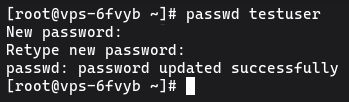
passwd yourusername
You'll be prompted to enter and confirm the new password. Make it strong and secure.
Changing password for user yourusername.
New password:
Retype new password:
passwd: all authentication tokens updated successfully.
Step 2: Add the user to the wheel group
By default, the new user cannot run administrative commands. To fix this, you need to add them to a specific group.
Here is the main difference between Debian-family and RHEL-family systems: on Ubuntu/Debian, the administrative group is called sudo. On AlmaLinux, CentOS, Rocky Linux, and Fedora, the administrative group is called wheel.
Add your new user to the wheel group using the usermod command:

usermod -aG wheel yourusername
Important: Never forget the -a flag. The -aG flags mean "append to groups". If you just use -G, the user will be removed from all their other default groups and added only to wheel.
Members of the wheel group are automatically granted full sudo privileges by the system's default policy.
Step 3: Test the new sudo user
Verify that the new setup works before logging out of your root account. Switch to the new user seamlessly using the su command:
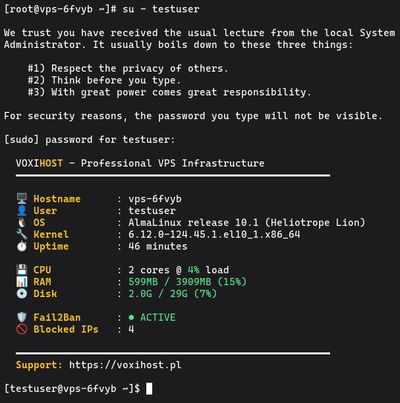
su - yourusername
Your prompt will change from root@server to yourusername@server. Now, test your administrative access by running a command that requires root privileges:

sudo whoami
You will see the standard warning message about respecting others' privacy. Enter the password you created in Step 1.
If the command outputs root, your setup is perfectly configured.
Next Steps
You can now disconnect your root session and log back in directly as your newly created user:
ssh yourusername@your-server-ip
Now that you have a sudo user, your next security priority should be setting up SSH key authentication and disabling direct root login entirely.
If you're ready to deploy your next application in a high-performance environment, spin up a Budget VPS, secure your user accounts, and start hosting.